

Setting up Bookings
Before you start taking online bookings, connect Stripe (for payments) and Google Calendar (for availability + avoiding double bookings). This is a one-time setup.
Connect Stripe (Payments)
-
Go to Bookings → Integrations
-
Find Online Payments and click Enable (if it’s not already on)
-
Click Set Up → Stripe → Connect Account
-
You’ll be redirected to Stripe to sign in and approve access, then redirected back once connected
Notes
-
Stripe must be a verified business account to connect successfully.
-
Once connected, you can choose your default payment behaviour (e.g. online vs on-site where available).
Connect Google Calendar (Availability + 2-way sync)
Connecting Google Calendar does two things:
-
Adds new bookings into your calendar, and
-
Blocks out busy times from your calendar so you don’t get double-booked.
Step 1: Enable calendar sync
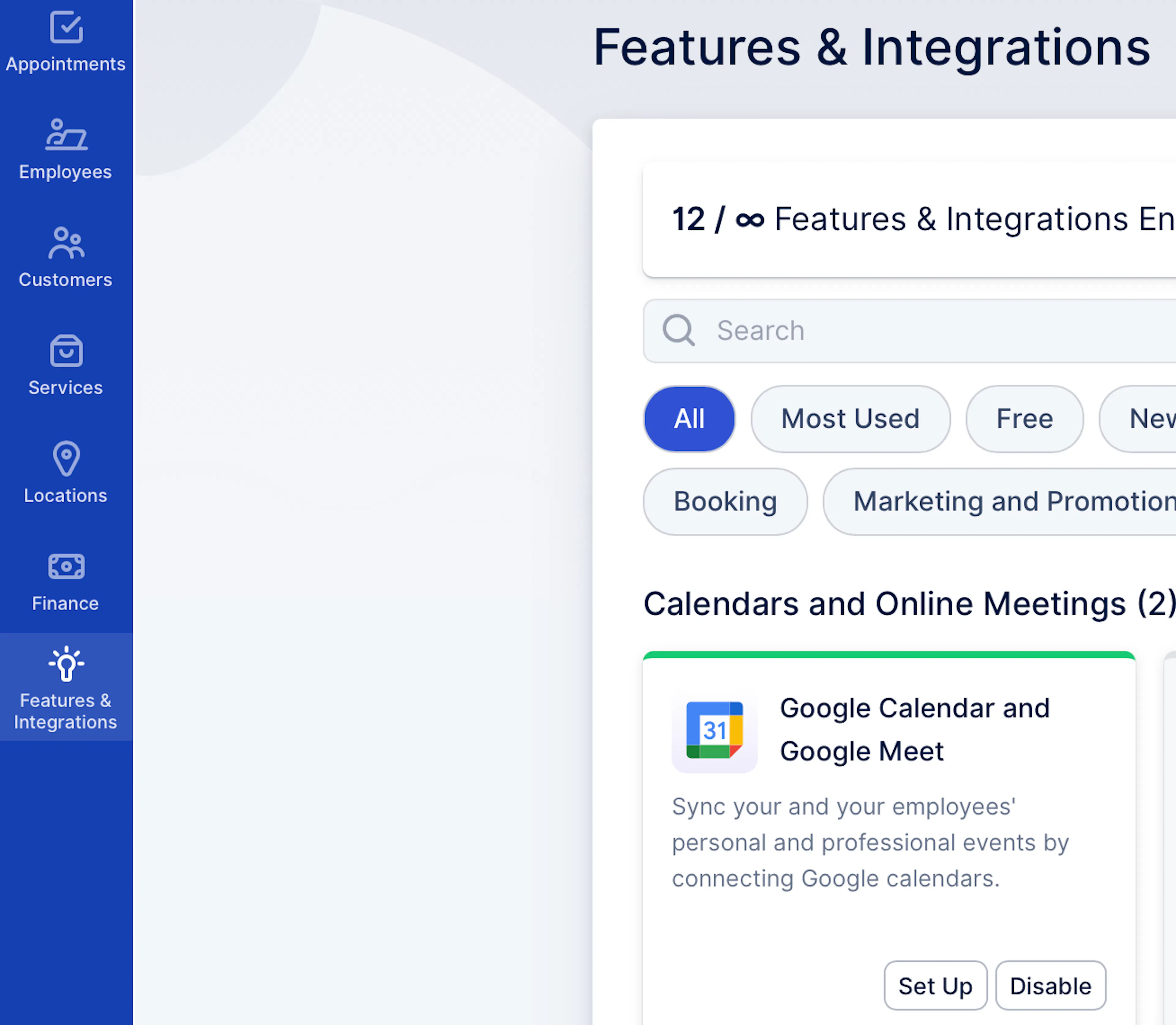
Go to Features & Integrations → Google Calendar
-
Click Set Up, then follow the prompts on screen

Step 2: Connect account
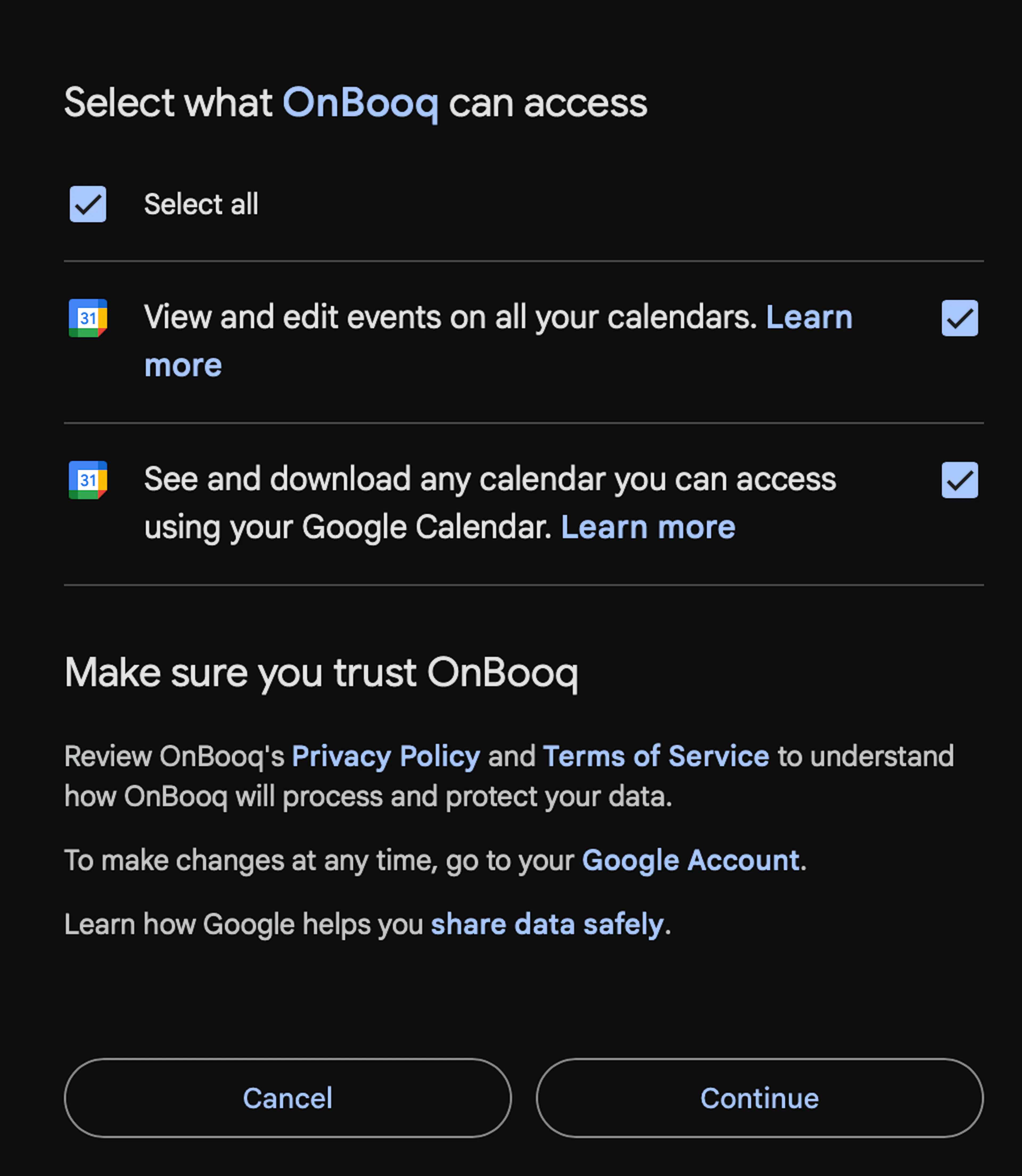
Click Connect account. We’ll redirect you to Google to sign in and choose the Google account you want to use. Google will ask you to allow OnBooq to access your calendars so we can create events and block out busy times.
Step 3: Allow permissions
To enable calendar sync, select both permission checkboxes and click Continue. You’ll be redirected back to OnBooq and your account will show as Connected.
Once connected, you can set:
-
Sync to: choose one calendar where bookings will be added.
-
Block time from: choose one or more calendars whose busy events should block availability.
-
Add another account: optional (use this if you need multiple calendars; limited to a small number).
-
Pending bookings: choose whether pending bookings should also be added to your calendar.
-
Buffer time: choose whether buffer time is included in calendar events.
-
Event title/description: customise what calendar events look like.
-
Don’t forget to click Save.
Quick “is it working?” test
-
Create a test booking
-
Confirm:
-
it appears in your booking dashboard, and
-
it appears in your Google Calendar, and
-
busy time in Google blocks new booking availability.